This detailed guide shows you how to install FileSynced APK on Firestick/Fire TV and Android devices.IntroductionThis comprehensive guide provides step-by-step instructions on how to install FileSynced APK on Firestick/Fire TV and Android devices. Whether you’re an avid streamer or a tech-savvy user,
Syncing Files Made Easy: Install FileSynced APK on Firestick and Android Devices (A Powerful FileLinked Clone)

Contents
- 1 This detailed guide shows you how to install FileSynced APK on Firestick/Fire TV and Android devices.
This detailed guide shows you how to install FileSynced APK on Firestick/Fire TV and Android devices.
Introduction
This comprehensive guide provides step-by-step instructions on how to install FileSynced APK on Firestick/Fire TV and Android devices. Whether you’re an avid streamer or a tech-savvy user, this guide will walk you through the process of installing FileSynced and ensuring a safe streaming experience.

What is FileSynced?
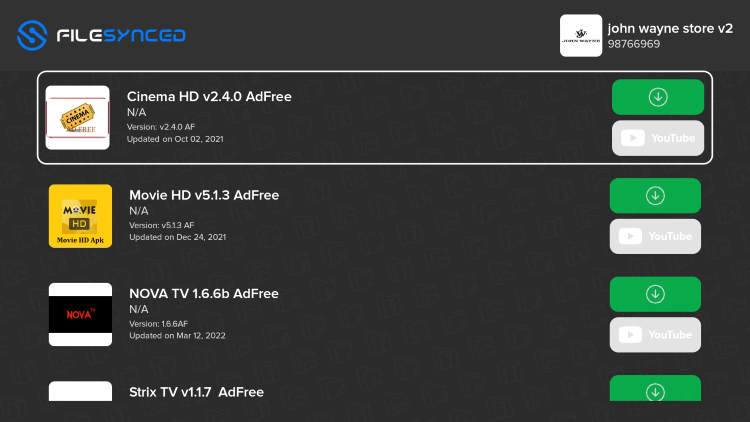
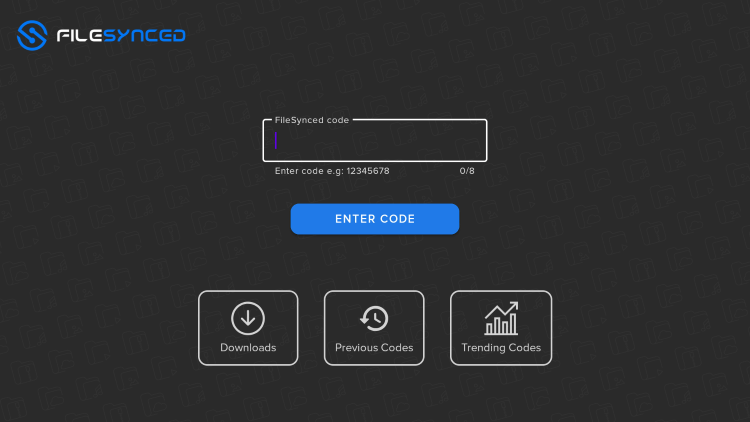
FileSynced is a highly popular app that allows users to quickly install third-party APKs on their devices. From IPTV players and apps to services and tools, FileSynced offers a wide range of options for users to enhance their streaming experience. It acts as a FileLinked clone, replicating its strategy of creating codes for quick installation within the application.
Installation Guide on Firestick/Android
Follow the comprehensive steps below to successfully install FileSynced APK on your preferred device:
Step 1: Install the Downloader app
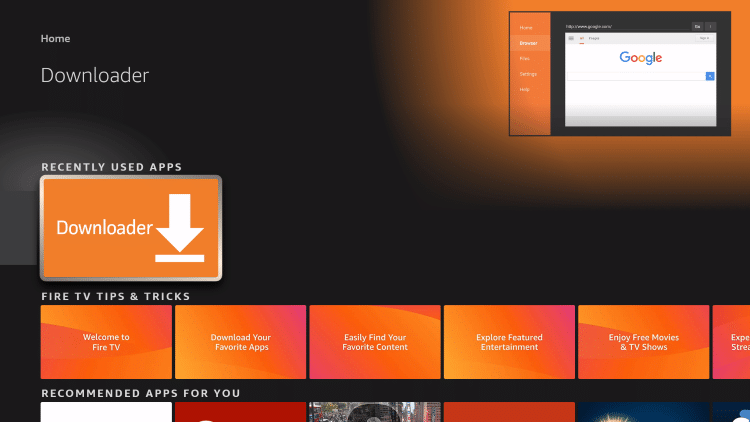
Begin by installing the Downloader app from your device’s app store, whether it’s Amazon’s App Store or Google Play Store. After installation, ensure that the “Apps from Unknown Sources” option is enabled in your device’s settings. This will allow you to install applications from third-party sources.
Step 2: Launch Downloader
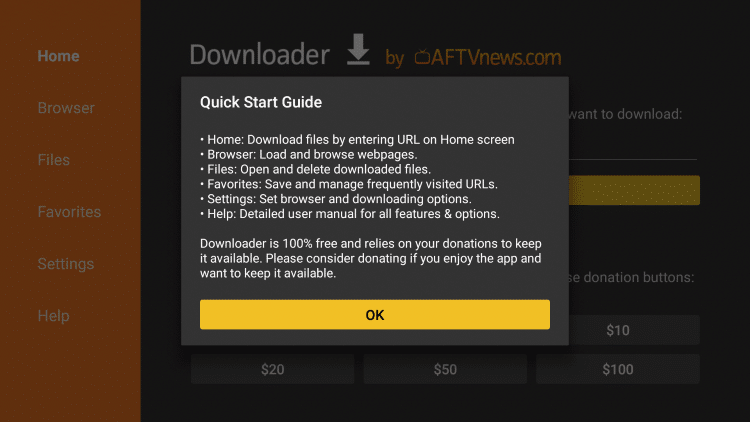
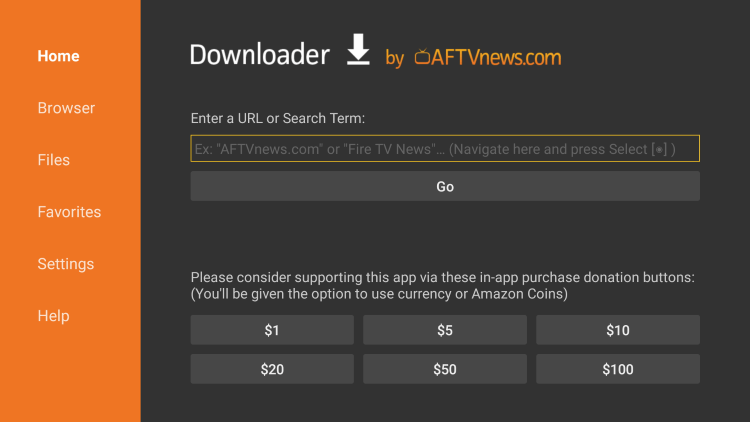
Once the Downloader app is installed, launch it on your device. This app serves as a tool to download files from the internet directly to your device.
Step 3: Allow permissions
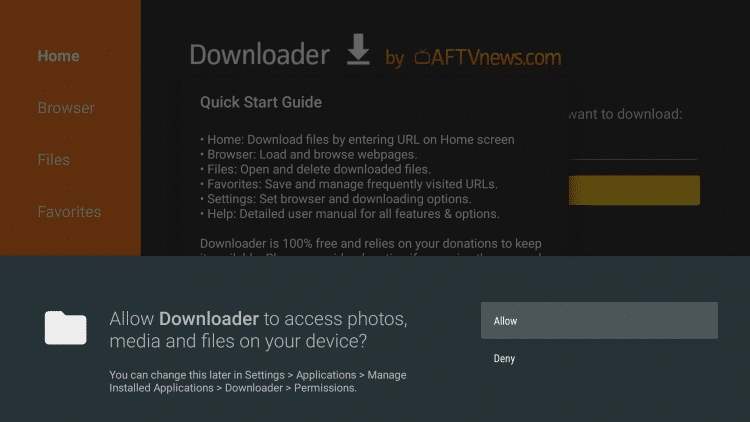
When you launch the Downloader app, you may be prompted to grant certain permissions. Click on “Allow” to proceed with the installation process.
Step 4: Enter the URL
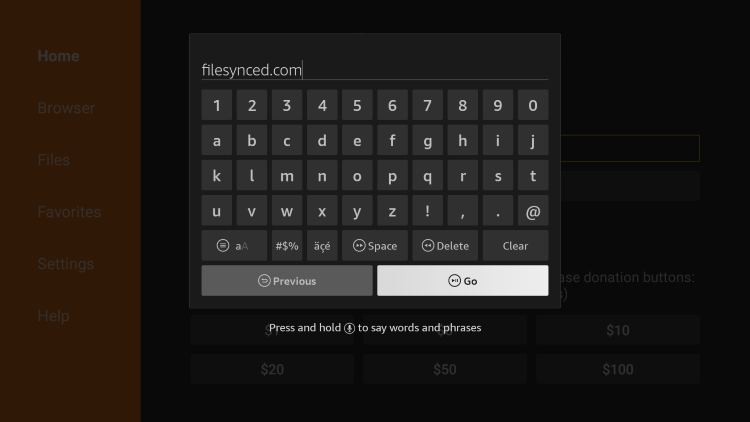
Within the Downloader app, locate the URL box and enter the following URL exactly: “https://www.filesynced.com”. Once entered, click on “Go” to initiate the download process.

Step 5: Download the APK file
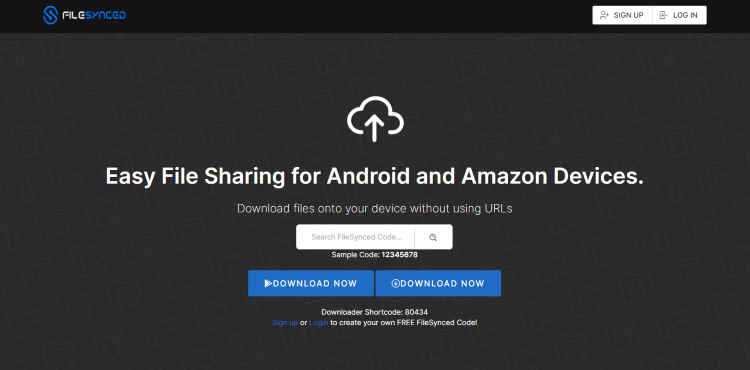
Scroll down within the FileSynced website and click on “Download Now” to download the APK file onto your device. Wait for the file to complete downloading.


Step 6: Install the APK
Once the APK file is downloaded, click on “Install” to commence the installation process. Follow any on-screen prompts to complete the installation.
Step 7: Launch FileSynced
After the installation is complete, you can choose to open the app immediately or click on “Done” to launch it later. Before launching FileSynced, it’s important to ensure that the “Install Unknown Apps” option is enabled within your device’s developer options.
Step 8: Allow permissions
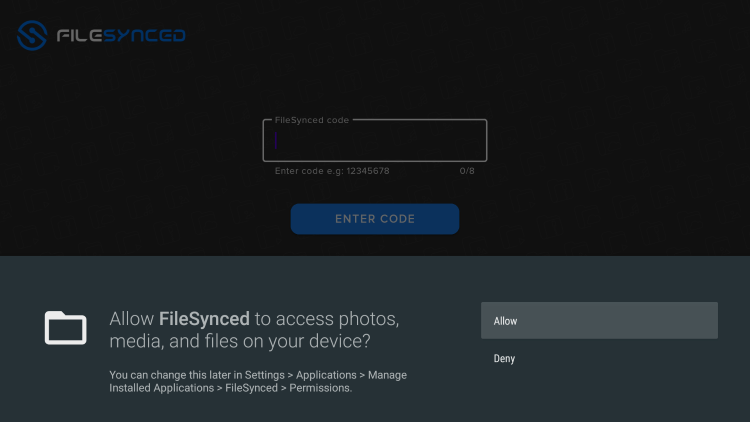
When launching FileSynced for the first time, you may be asked to grant certain permissions. Click on “Allow” to proceed.
Step 9: Successful installation
Congratulations! You have successfully installed FileSynced APK on your device. You can now explore the wide variety of third-party APKs available within the app to enhance your streaming experience.
Safety and Security
While FileSynced has been scanned and found to be free from malicious viruses and malware, it’s always important to prioritize your online security. We recommend using a VPN (Virtual Private Network) when installing unverified apps from FileSynced. A VPN helps protect your data and anonymity, ensuring a safer streaming experience.
Screenshots
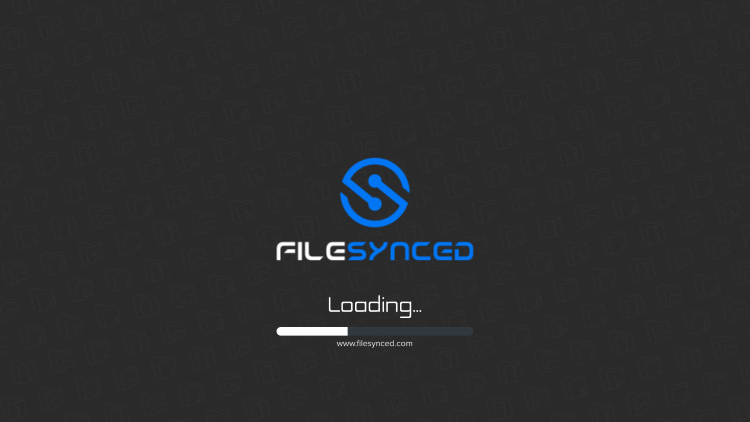
Here are some screenshots of the FileSynced app:
FileSynced Details & Information
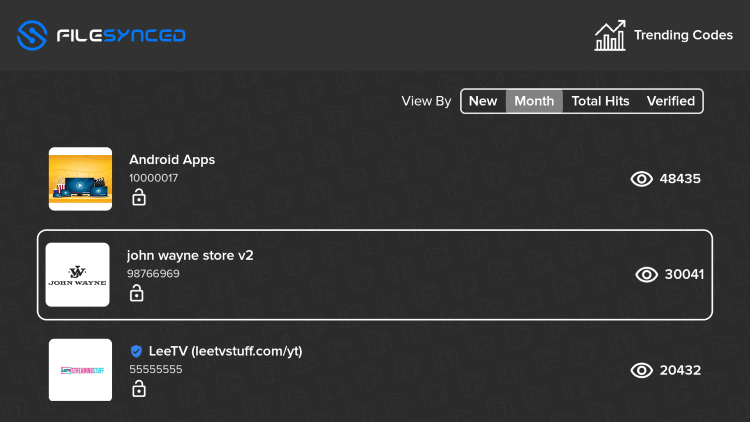
FileSynced allows users to create their own codes, similar to FileLinked, for quick installation of various free IPTV apps. The app provides an up-to-date list of the best FileSynced codes, ensuring users have access to the most popular and reliable options for installation.
Frequently Asked Questions
What is FileSynced?
FileSynced is a powerful app that enables users to install third-party APKs on their devices, expanding their streaming options beyond what is available on official app stores.
Is FileSynced Legal?
Yes, FileSynced is legal to install and use. However, it’s essential to note that some of the content provided through third-party apps may be illegal. To ensure you are streaming legally, stick to watching movies and TV shows in the public domain.
Is FileSynced Safe?
FileSynced is considered safe to use, as it has been scanned for viruses and malware. However, it’s always recommended to exercise caution when downloading and using third-party apps. Using a VPN, such as Surfshark VPN, can add an extra layer of security by encrypting your connection and protecting your data from third-party app developers.
What Devices can this App be Installed on?
FileSynced is compatible with various devices, including the Amazon Firestick, which is one of the most popular streaming devices available. Additionally, users can install FileSynced on Android devices, NVIDIA SHIELD, Chromecast with Google TV, Android TV Boxes, phones, tablets, and more.
Conclusion
Overall, FileSynced APK is a highly useful tool for streamers who want to expand their content options. By following the installation guide and taking the necessary precautions, you can enjoy a wide array of third-party apps and enhance your streaming experience. Remember to use FileSynced responsibly and adhere to legal streaming practices. Stay informed about the best FileSynced codes available to access the latest and most reliable options for third-party app installation.


Recent News